
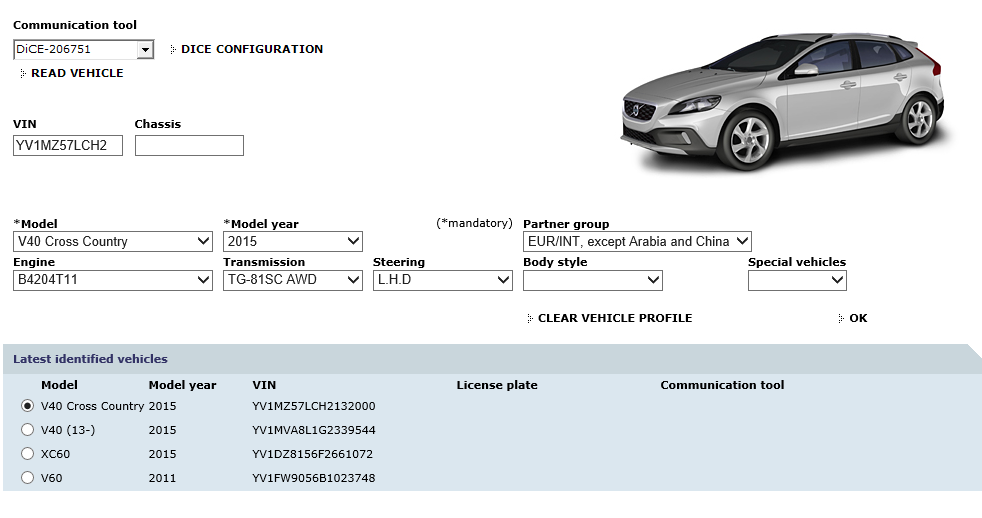
Big thanks to SVNDS.INFO for putting this together for us!
Zjev over on Sweedspeed had done a great job of adding Vin support to V1da 2014d for newer p3/p4 models (No SPA platform support and no V60CC yet.)
But it was still somewhat of a difficult job to modify the SQL database for your average Joe…….so I thought how can it be made easier…… hey can’t we just copy the modified SQL database from one V1da to another?
Yes, yes you can, and it is really simple and works like a charm.
Now, the extended vin support is not perfect, use it at your own risk of course. Some engines variants are not listed, but choosing something close enough will get you your fault codes and most calibration routines.
So, to update your V1da 2014D Follow these steps..
- 1) Download the modified “BaseData” SQL files from here.
- 2) Unzip the files to a folder somewhere easy to access (Such as your desktop).
- 3) Stop V1da With V1da monitor (By the clock, Right click it, then choose stop).
- 4) Stop the V1DA SQL service (Windows key + R and type “services.msc” and click ok, now scroll down to SQL Server (V1da) and right click and choose stop).
- 5) now navigate to C:\V1da\db and take a copy of BaseData_Data and BaseData_log and put them somewhere safe just in case.
- 6) Now back to where we extracted the new BaseData files and copy them to C:\V1da\db , it should ask to over write the existing BaseData files. Say yes to overwrite them.
- 7) Start V1da with V1da Monitor (Right click Start).
- 8) Start the V1da SQL service (See item 4, but Right click and Start).
- 9) You may need to Repatch V1da, see here for patch and instructions.
- That’s it!
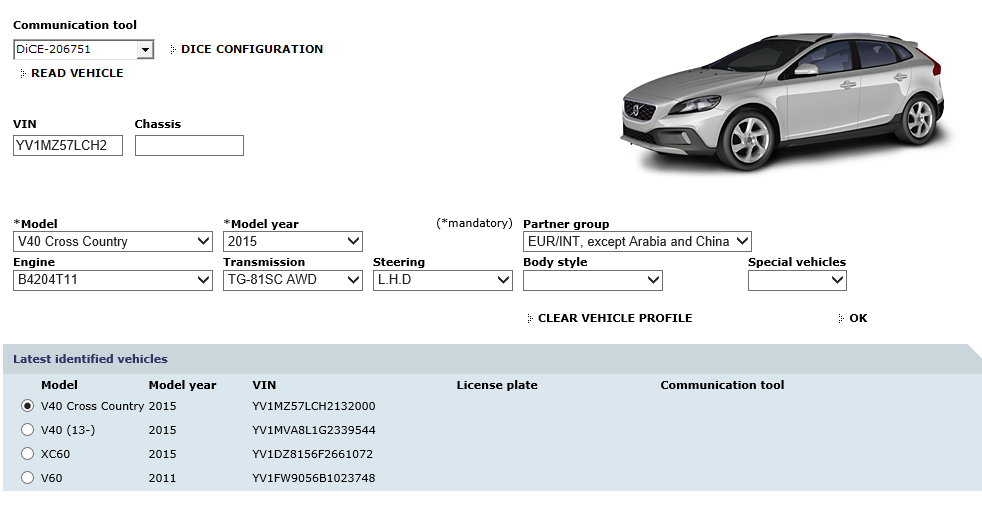
But what if you have a newer P3 platform car like a 2018 V60 polestar, surely thats game over right?
Wrong!
We can still totally work with this car, but you have to turn off a setting called “Vin Decoding”.
This is the basic user instructions:
- Log into V1DA as per normal.
- Go to Vehicle profile and make sure the correct communication tool is selected in the drop down (Which for most people is DiCE-206751).
- Go back to Start.
- Click “Perform computer settings” then in the box that opens, under “Vin Decoding” put the dot in “off”, then click continue, then apply then OK.
- Go Back to the “Vehicle Profile” Tab, you will see it now says “vin decoding off”.
- Type in your Vin.
- Complete all the drop down boxes as accurately as you can . If you dont know your engine type, you can put your Vin in the d5t5.com website search box to find out. If you cannot see your engine type, choose the next closest you can. In this example, the engine in the car is a B4204T43 , but the closest match in Vida is a B4204T15, but as you can see below, Vida has a full understanding of it.
- Click OK.
- Click on Diagnostics and proceed as per normal from then on.
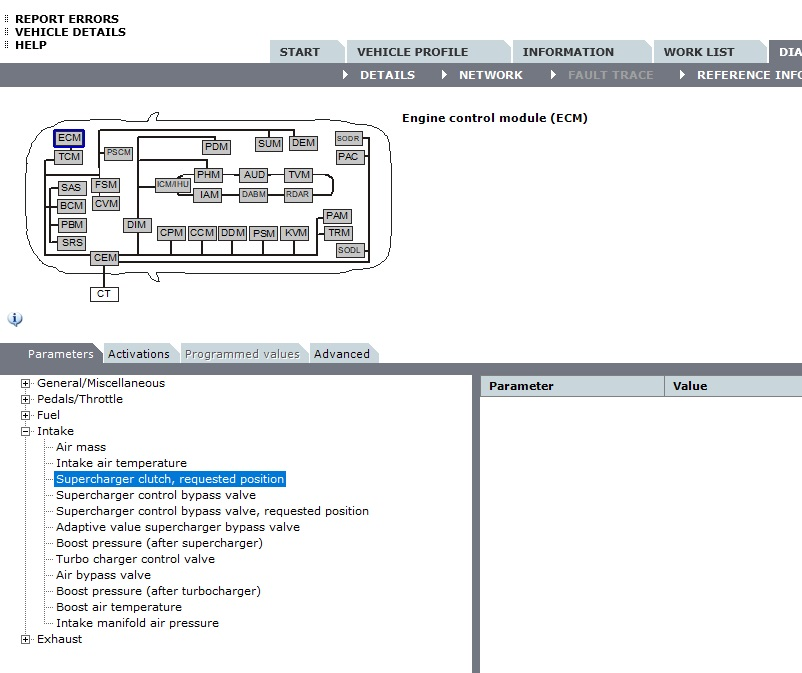
This 2018 V60 Polestar can be fully diagnosed with Vida 2014d.
This is not hypothetical, this is from actual proven usage.
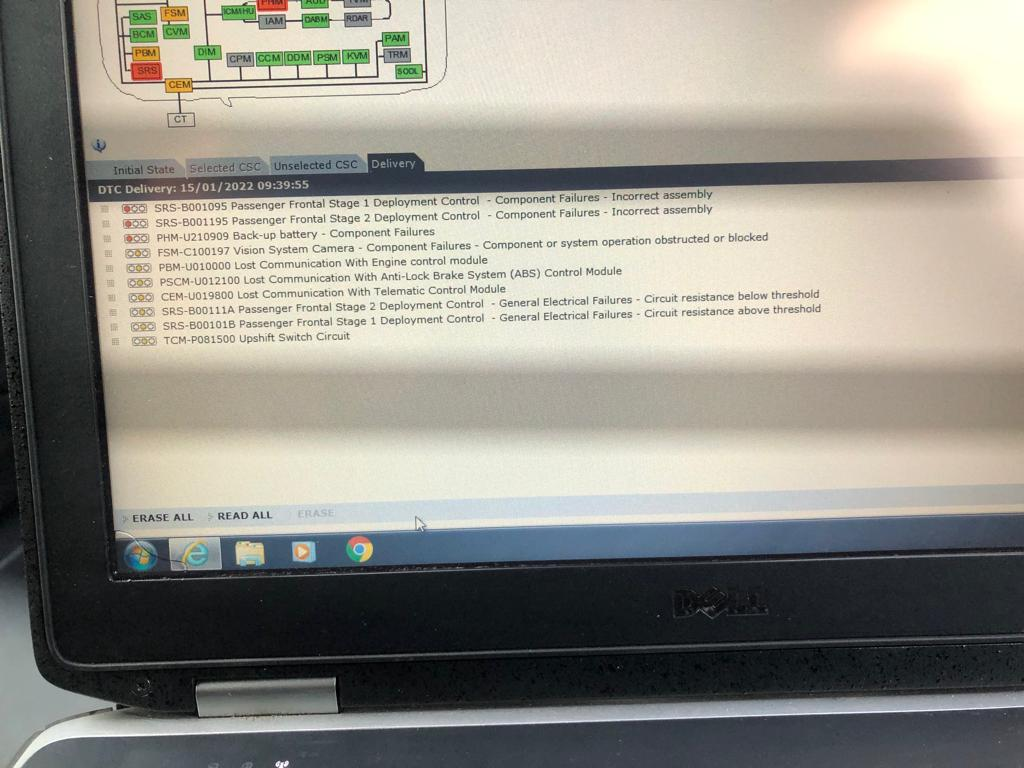
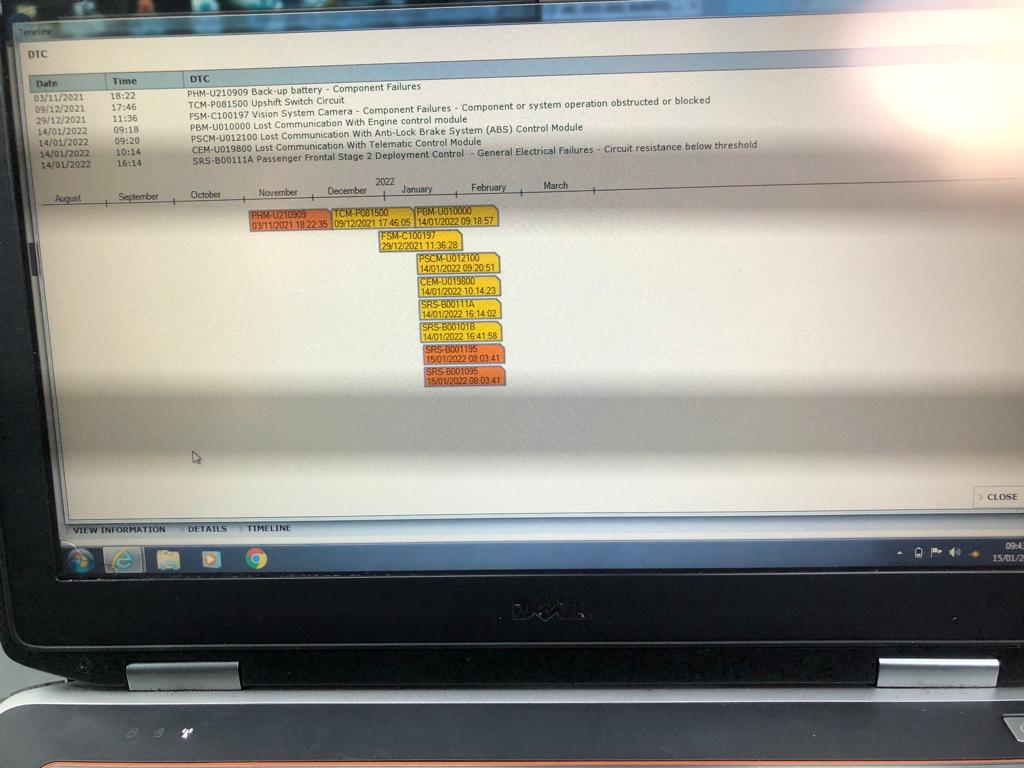
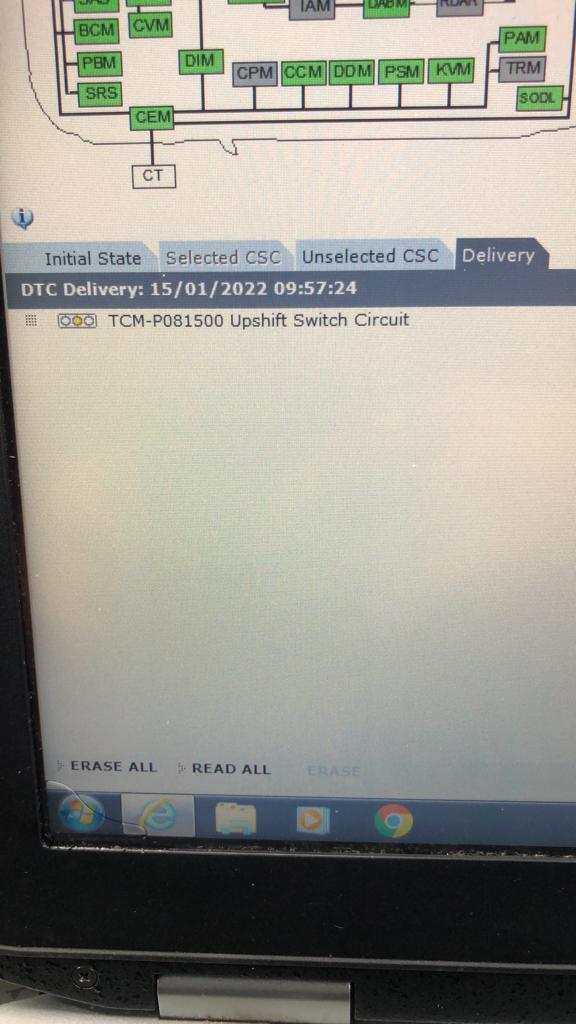
Unfortunately Not all engines and gearboxes are available such as B4154T4 and AWTF-71SC.